How to Make an Ozil Goal AI Video With Your Own Photo
Make a personalized AI football goal video from one photo. Follow the upload, sign-in and download steps, with photo tips, pricing and a template example.
Last updated: 2026-10-19 · By the Ozil Goal AI team
Upload a photo → Choose a scene → Generate → Download. Sign in, check your credits and confirm permission before generating.
You can make an Ozil Goal AI video from a single photo at ozilgoalai.io. The site uses a preset football sequence, so you do not need to write a prompt or assemble the action in a video editor. Add your photo, review the example and credit cost, then generate a personalized AI goal video.
This walkthrough is written by the Ozil Goal AI team. It describes our own product, not an independent ranking of competing tools. If you are trying to identify the effect first, read our explanation of the Ozil Goal AI trend.
Watch the goal template first
Choose a daylight stadium or a Halloween manor setting. Both use the same goal sequence; the scenery and soundtrack differ. The video below shows the daylight scene.
720p HD sample · 15 seconds. Choose 480p or 720p for your video; 480p is selected by default.
Template example. Your generated appearance and movement can vary; the example is not a preview made from your photo.
Choose a scene and compare real examples
See the source photo and full daylight video or the Halloween example. Compare the native 480p version with the 720p Halloween clip. These are separate generations using the same reference material, so movement and small details can differ too. The 480p clip is not a downscaled 720p export.
What you need
Use a clear photo with one adult as the main subject: yourself, or someone who has explicitly agreed to appear in this AI-generated video. You must also have the right to use the photo and be at least 18 yourself. Do not upload public figures or people who have not agreed.
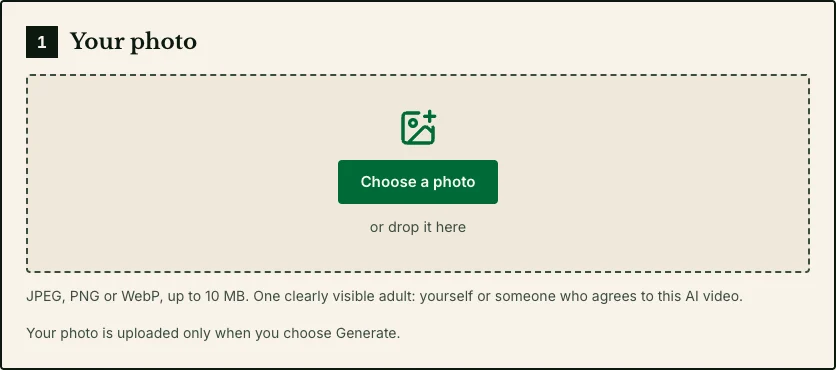
The upload accepts JPEG, PNG or WebP files up to 10 MB. Choose a photo where the face is visible and the outfit is easy to see. A standing, full-body photo can communicate more about clothing and shoes, but it does not guarantee a more accurate result. Avoid group photos, heavy filters and objects covering the face.
You do not need a football kit. The generation instructions aim to preserve your face, hairstyle and original outfit, including visible accessories. A casual outfit or a dress can be part of the idea. Small details, such as a hat or bag strap, may change as the person moves.
Step 1: Open Create your goal
Go to Create your goal. Choose a scene and read the information beside the form. This is a browser-based workflow; you do not need to install a separate Ozil app or prepare a custom text prompt.
Step 2: Choose a photo
Select Choose a photo, or drop a supported image into the upload area. Check the preview before continuing. You can replace the photo if the wrong file was selected.
Selecting a photo prepares it in the browser. It is uploaded when you choose Generate video, rather than merely when you select the file. Read the Privacy Policy for how uploaded and generated media are handled.
Step 3: Sign in and check your credits
Sign in using an available login option. Google sign-in is supported. If the browser blocks the login popup, follow the fallback sign-in flow and return to the creation page.
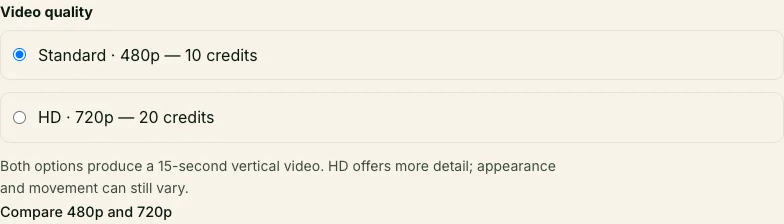
Daytime and Halloween goals: Each 480p video uses 10 credits; 720p uses 20. 480p is selected by default. The same credit balance works for either quality. The 9-second fake rabona costs 10 credits at either resolution.
- 480p: USD 4.90 for 10 credits.
- 480p: USD 19.90 for 50 credits.
- 720p: USD 5.99 for 20 credits.
- 720p: USD 24.99 for 100 credits.
These are one-time packs in US dollars. Check expiry, subscription renewal terms and any tax at checkout. Watching examples is free; personalized generation is paid. Pricing
Watching the public example is free. Generating a personalized video is paid; the example is not a free generation trial.
Returning after buying credits
If you need more credits, use the pack link beside your balance. Your photo, scene and quality are kept in this browser tab for up to 30 minutes, when browser storage is available. After payment, the account page checks the server’s settlement record. Once payment is confirmed, choose Continue your video. Check the restored settings and confirm photo permission again before generating. Returning from checkout does not automatically start a paid generation.
Step 4: Confirm permission and generate
Read and confirm the upload statement, check the selected template, and choose Generate video. Your input goes through an automatic content review. Credits are reserved after the photo passes that review.
The service prepares personalized reference images and then creates the video. You do not need to manage those intermediate steps. Processing time varies with the generation service and review stages; we do not promise an instant result. While a job is running or its status is still being confirmed, check its progress rather than submitting the same request again.
Step 5: Watch and download the result
When generation and the final checks are complete, open the result and watch it all the way through. You can find your jobs in My videos. Check the face, clothing, accessories, football movement and ending before downloading or sharing the clip.
The current output setting is a 15-second vertical video at 480p or 720p, with background music added during final delivery. This is an AI-generated entertainment clip, not footage of a real match involving the person in your photo. Use the platform's applicable AI-content disclosure when posting it.
Using your phone
Open the site in your browser, choose a photo from your library, then pick a scene and quality. Keep the same tab open through sign-in or checkout so the saved draft can be restored. When the result is ready, use Download and check your browser’s downloads or Files app. Mobile layout checks were run in Chromium; the full upload, sign-in, payment return, generation and download flow has not yet been verified on a real iPhone Safari or Android Chrome device.
Common questions
Do I need to write a prompt or use CapCut?
No. This workflow supplies the goal preset. You do not need CapCut or a separate editor to generate and download the video. An editor is optional if you later want captions, a different cut or other changes.
Will it keep my face, clothes and hairstyle exactly?
The instructions prioritize those features, but exact reproduction is not guaranteed. Fast movement, small faces, occlusion and fine accessories can produce visible differences. A clear photo helps show the model what you want it to preserve. It cannot eliminate all variation.
What if a hat, sunglasses or hair clip changes?
Head accessories are included in the continuity instructions, but they can still shift or disappear in some frames. Keep important accessories visible in the source photo and inspect the whole result. Do not rely on a single thumbnail to judge continuity.
Will the ball definitely go into the net?
The current generation instructions request a visible finish within the clip. AI motion can still vary, so this is not a guarantee that every output will show identical ball movement or a perfect final shot. Watch the ending as part of reviewing your result.
What happens if generation fails?
For a charged task confirmed as failed, or a result rejected for delivery, the reserved credits return to the original pack with its original expiry. A task that is still queued or being checked is not yet a confirmed failure. A credit return is different from a cash refund. See the Refund Policy for the full terms.
Is this the exact tool used in the TikTok video I saw?
Not necessarily. Several services and editing workflows can create similar-looking videos. We cannot identify the tool behind an arbitrary social clip just from its style. Compare the action in our example with the effect you want before purchasing.
Make your own goal video
Open Create your goal, or review the prices first. For help with an existing job, contact support@ozilgoalai.io.